Resource detail
What you see when you open a resource — the overview, the attention block, related objects, usage, and the Logs, Shell, YAML and Events tabs.
Open a resource from a table, the command palette, the topology graph or a link in another detail. It opens either beside the table or in its own tab; the content is the same.
The tabs of a detail
| Tab | For | Key |
|---|---|---|
| Overview | Everything | |
| Logs | Pods and Deployments | l |
| Shell | Pods | t |
| YAML | Everything | e |
| Events | Everything |
The header carries the actions that apply to the kind — Scale, Restart, Rollback, Trigger now, Suspend, Re-run, Cordon, Node shell, Drain, Delete. s scales and d deletes; both ask first.
When you follow a link from one resource to another — a pod’s node, a Deployment’s pod — a breadcrumb trail builds up in the header, and Esc walks back along it.
A pod, top to bottom
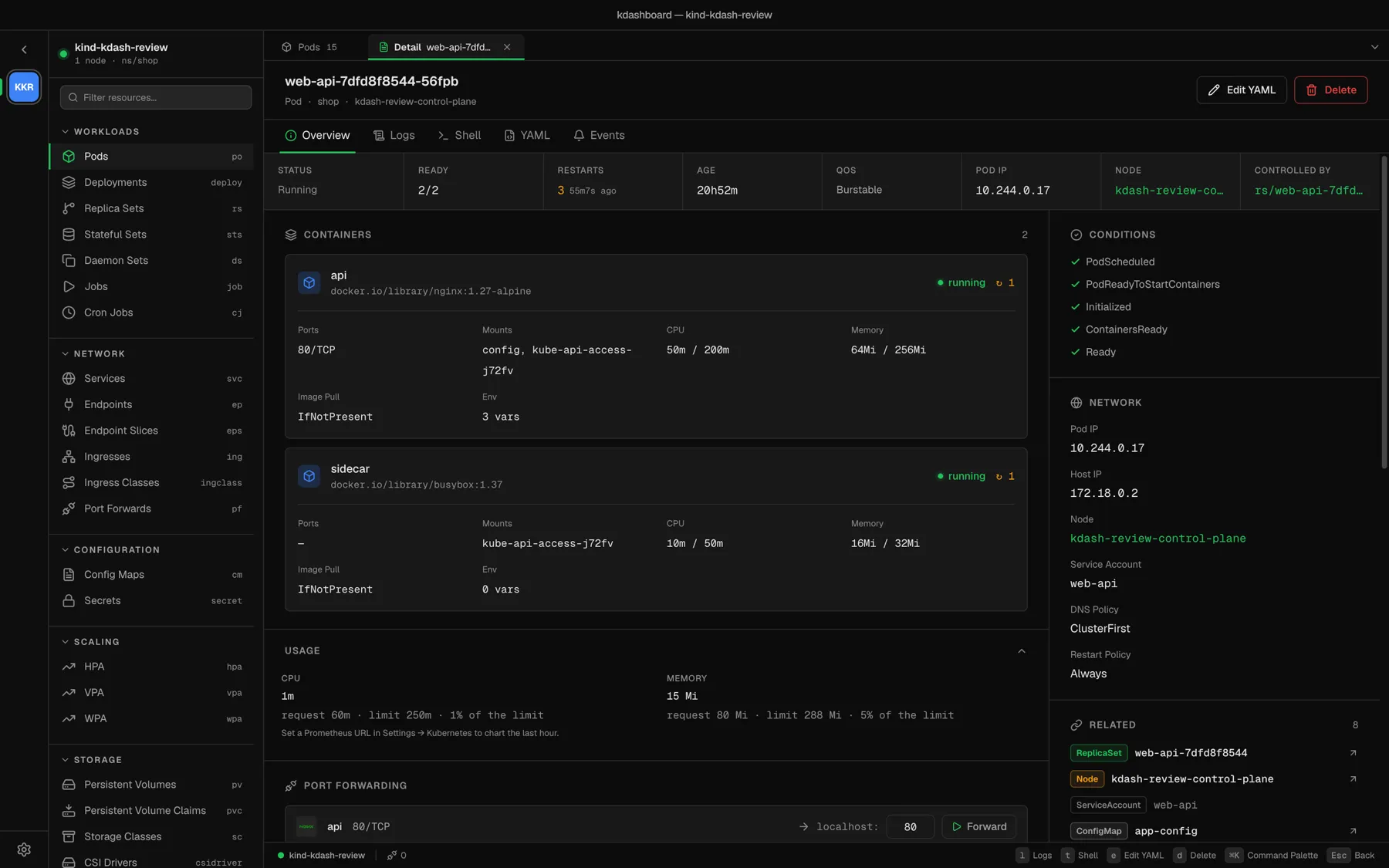
The overview is ordered by what you need first when something is wrong:
- Summary — status, ready containers, restarts (and how long ago the last one was), age and QoS class; pod IP, node and owner when there is room.
- Attention — only when something is wrong. See below.
- Containers — image, state, ports, requests and limits for each.
- Usage — live CPU and memory against requests and limits.
- Port Forwarding — one row per container port. See Port forwarding.
- The ConfigMaps and Secrets it references, and recent events.
- On the side: conditions, network (IPs, node, service account, DNS and restart policy), related resources and labels.
- Collapsed at the bottom: init containers, probes, security context, tolerations, volumes, metadata and annotations.
Other kinds follow the same idea with their own cards: a Deployment has its rollout state and its revision history; a Service its endpoints; a Node its capacity, conditions, taints and the pods running on it.
The attention block
When a pod is unhealthy, a tinted block at the top of its overview says why in plain words — Container api is crash-looping, Container web cannot pull its image, Container worker was OOM-killed, Pod cannot be scheduled — followed by the evidence: the last exit code, the restart count and the message from the kubelet. Its Logs and Events buttons take you to the matching tab.
A Service with a selector that matches no ready pod gets one too: No endpoints — traffic to this service has nowhere to go, with the selector, how many pods match, and a button to the first of them.
For the same diagnosis across the whole cluster, use Problems.
Related resources
Details link to what they depend on and what depends on them: the workload that owns a pod, the Services that select it, the node it runs on, the ConfigMaps and Secrets it mounts. Click any of them to open it.
On an Ingress, a backend Service that does not exist is flagged as missing.
Usage and history
The Usage card always shows the current reading from metrics-server, with the request, the limit and the percentage in use. Without metrics-server it says No metrics-server.
Set a Prometheus URL and the card also charts the last 60 minutes of CPU and memory, with the current and the peak value. Autoscaler details chart the replica count the same way. kdashboard queries the standard cAdvisor metrics: container_cpu_usage_seconds_total and container_memory_working_set_bytes.
Events
The Events tab lists the Kubernetes events of the resource, merged with its status conditions — so it still tells you something after the events themselves have expired, about an hour later.
For every event in a namespace or the cluster, open Cluster → Events.
Secrets
Secret values are hidden. They are decoded only when you choose to reveal them, and are never written to disk.