Shell and debug containers
A terminal inside any container, an ephemeral debug container for images that have no shell, and a host shell on a node.
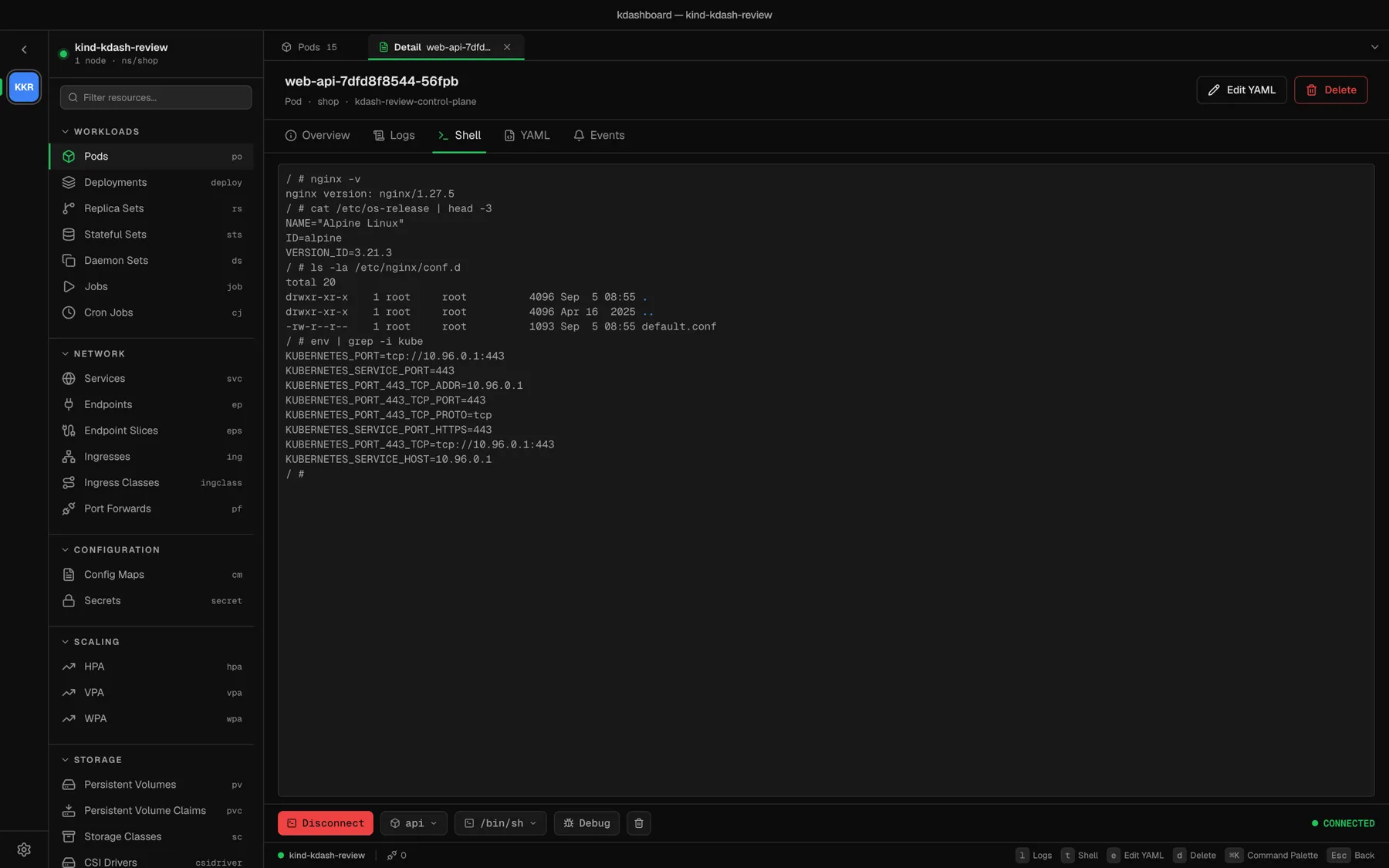
Shell into a container
On a pod: press t in its detail, ⌘T from anywhere, choose Open Terminal in the row menu, or click the Shell tab. kdashboard connects to the first container straight away.
The bar at the bottom has:
- Connect / Disconnect, and a CONNECTED badge;
- Container — every container of the pod, including ephemeral ones;
- Shell —
/bin/sh(the default),/bin/bashor/bin/zsh; - Debug — see below;
- Clear terminal.
If the image does not have the shell you picked, the error is printed in the terminal; choose another one. kdashboard does not fall back on its own. The terminal resizes with the panel and follows the app theme.
You need the pods/exec permission in the namespace.
Debug a container that has no shell
Distroless and scratch images have no sh to exec into. Click Debug: kdashboard attaches an ephemeral debug container to the pod — what kubectl debug does — and opens a shell in it.
- The image is
busybox:1.36. - It targets the container selected in the Container picker, so it shares that container’s process namespace:
psshows the application’s processes. - It appears in the Container picker as
debug-xxxxxx.
An ephemeral container cannot be removed. It stays until the pod is deleted. On a pod you care about, prefer a replica you can throw away.
You need permission to patch pods/ephemeralcontainers. If the image cannot be pulled or the container exits, kdashboard tells you within a minute instead of hanging.
Shell on a node
On a node: choose Node Shell in the row menu, or click Node shell in the detail header. After a few seconds you get a root shell on the host.
How it works, so you can decide whether you want it:
- kdashboard creates a pod named
kdashboard-node-shell-xxxxxxinkube-system, pinned to that node, runningbusybox:1.36. - The pod is privileged, shares the host’s PID, IPC and network namespaces, and tolerates every taint — so it starts on cordoned and tainted nodes too.
- The terminal enters the host’s namespaces with
nsenter. - The pod is deleted when you close the shell. Should kdashboard die first, the pod ends on its own after one hour.
You need to be allowed to create, exec into and delete pods in kube-system, and the cluster’s Pod Security settings must admit a privileged pod there. If it cannot start within a minute, kdashboard deletes it and shows the reason.
Copy and paste
Select text with the mouse and use your system’s copy and paste shortcuts.