Security and RBAC
Scan the images running in your cluster with a local trivy or grype, and find out exactly what a ServiceAccount, user or group is allowed to do.
Cluster → Security has two modes, switched from the header: Posture and Permissions.
Image posture
kdashboard does not ship a vulnerability scanner. It runs the one you have installed, on your machine, against the images of the pods in the selected namespace.
Install a scanner
Install trivy or grype and make sure it is on your PATH. kdashboard looks for trivy first and falls back to grype. The badge next to the title tells you which one it found — trivy, grype or none. Detection is cached for ten minutes, so give it a moment, or restart the app, after installing one.
kdashboard reads the
PATHof your login shell at start-up, so a scanner installed with Homebrew or in~/binis found even when you launch the app from the Dock.
Read the results
- The tiles count scanned images and findings by severity: Critical, High, Medium, Low.
- The bar shows how many pods are compliant: a pod is compliant when its scanned images have no Critical and no High finding.
- Each pod is a row with a chip per severity —
3 C,12 Hand so on. Expand it to see the counts per image. - Pods with findings are listed first.
A row that says Not scanned or Scan failed had no result; hover a failed image to read the scanner’s error. With no scanner installed every pod reads Not scanned — do not take the compliance bar at face value in that case.
Scans run four at a time, with a two-minute limit per image, and results are kept for 30 minutes. Refresh re-lists the pods and scans any image it has not seen; it does not re-scan an image inside those 30 minutes.
Private images are pulled by the scanner, not by kdashboard, so the scanner needs its own registry credentials.
Permissions (RBAC explorer)
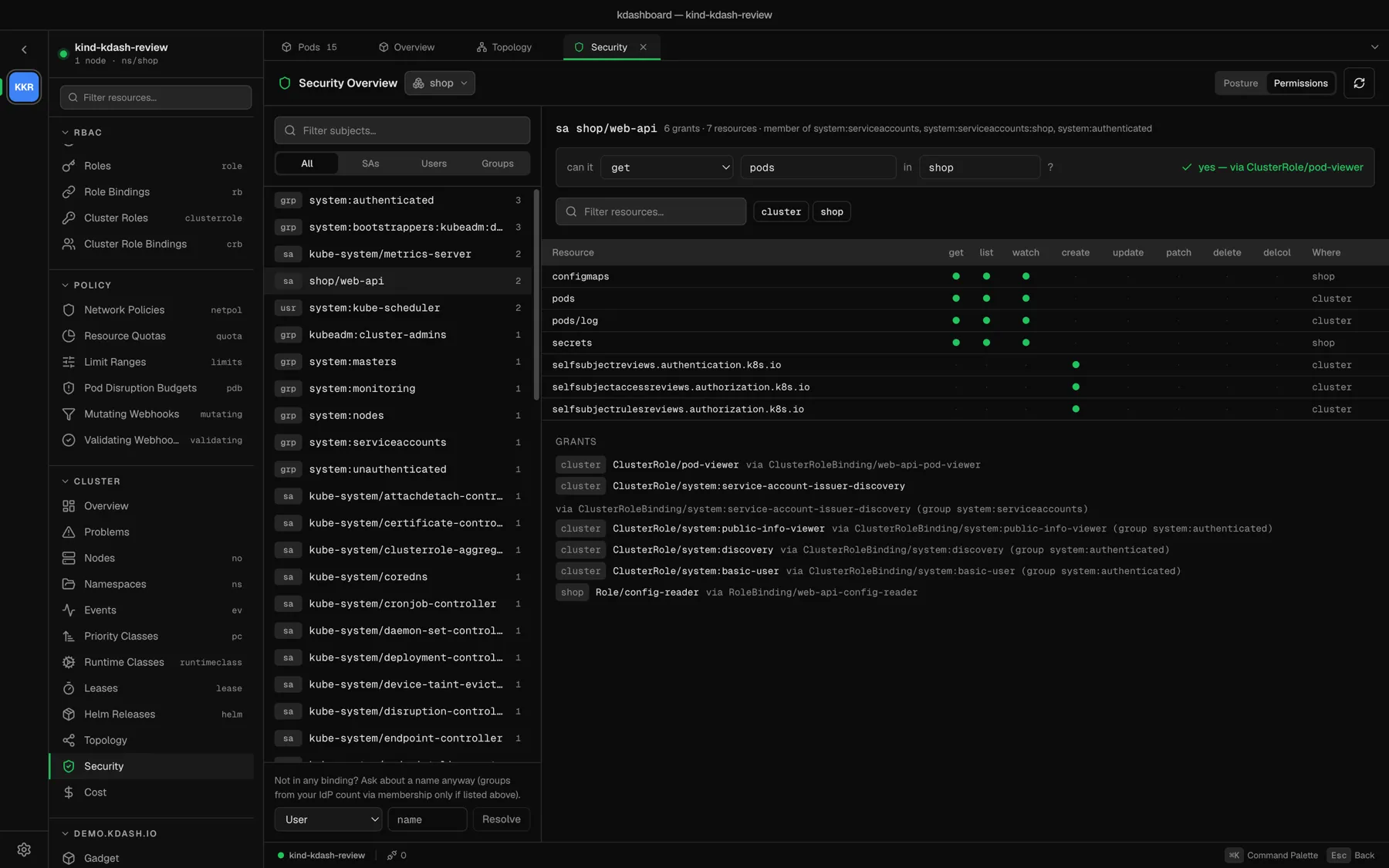
The explorer reads every Role, ClusterRole, RoleBinding and ClusterRoleBinding you are allowed to list, and resolves them per subject. If you cannot list them cluster-wide, it falls back to the selected namespace.
Pick a subject
The left column lists every ServiceAccount, user and group that appears in a binding, with the number of bindings. Filter by name, or by kind with All, SAs, Users, Groups.
To ask about a name that is in no binding — a user from your identity provider, say — use the box at the bottom: choose the kind, type the name, Resolve.
Implicit groups are applied for you: a ServiceAccount is also a member of system:serviceaccounts, system:serviceaccounts:<namespace> and system:authenticated; a user, of system:authenticated.
Read what it can do
- The summary counts grants and resources, and lists the groups the subject belongs to. A red cluster-admin badge means the subject holds
*on*across the cluster. An amber missing role badge means a binding points at a Role or ClusterRole that does not exist. - can it … ? answers a direct question. Pick a verb, type a resource (
deploy,deployments.appsandapps/deploymentsall work), optionally a namespace, and read yes — via <role> or no. Leave the namespace empty to ask at cluster scope. - The matrix has a row per resource and a column per verb:
get,list,watch,create,update,patch,deleteanddeletecollection. A dot means allowed. Where lists the namespaces, orcluster.(n named)means the rule only covers specific object names; hover to see them. - Grants is the chain behind it all: which Role or ClusterRole, through which binding, and through which group if any.
The answers are computed from the bindings, not by asking the API server, so they are instant and they work for any subject — not only for you.