Overview, Problems and alerts
See the health of a cluster at a glance, read a diagnosis for everything that is broken, and get told when a resource you care about changes state.
Overview and Problems are the first two entries of the Cluster section in the sidebar. Both have their own namespace picker in the header: pick a namespace, or leave it on all namespaces to read the whole cluster. The badge next to the title says which one you are looking at — whole cluster or namespace <name>.
If your credentials cannot list some kinds, the view still loads and shows a partial badge; hover it to see which kinds were skipped.
Overview
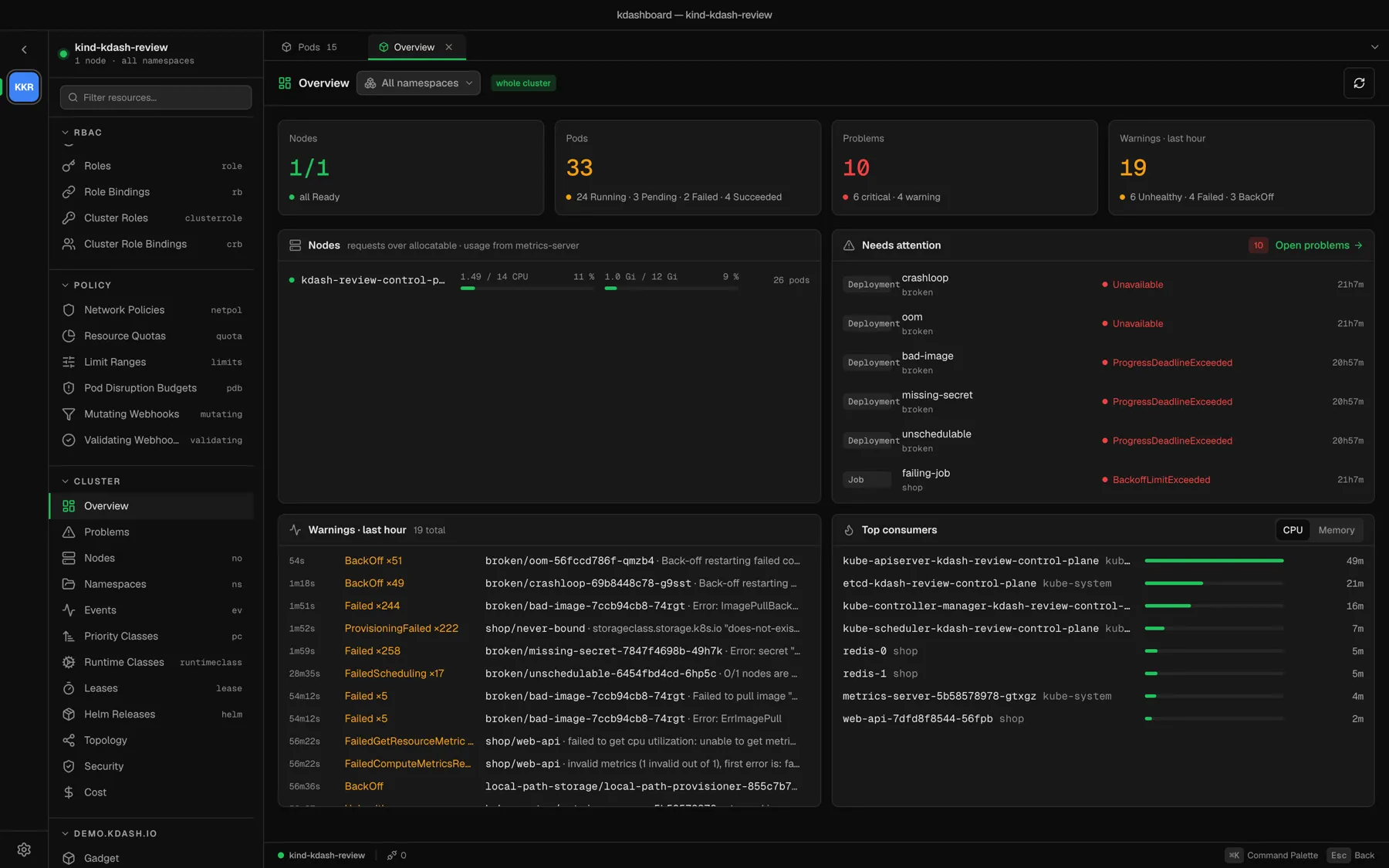
Four tiles across the top:
| Tile | What it shows |
|---|---|
| Nodes | Ready over total, and how many are NotReady or under pressure |
| Pods | The total, split into Running, Pending, Failed and Succeeded |
| Problems | How many things need attention, split into critical and warning |
| Warnings · last hour | The number of Warning events, with the three most frequent reasons |
And four cards below them:
- Nodes — requests over allocatable for CPU and memory, per node, with badges for
NotReady, pressure conditions andcordoned. Click a node to open it. With metrics-server installed, the meters also carry live usage. A meter turns amber above 75 % and red above 90 %. - Needs attention — the first six problems. Open problems → takes you to the full list.
- Warnings · last hour — the most recent Warning events.
- Top consumers — the eight busiest pods, by CPU or Memory. This card needs metrics-server.
Problems
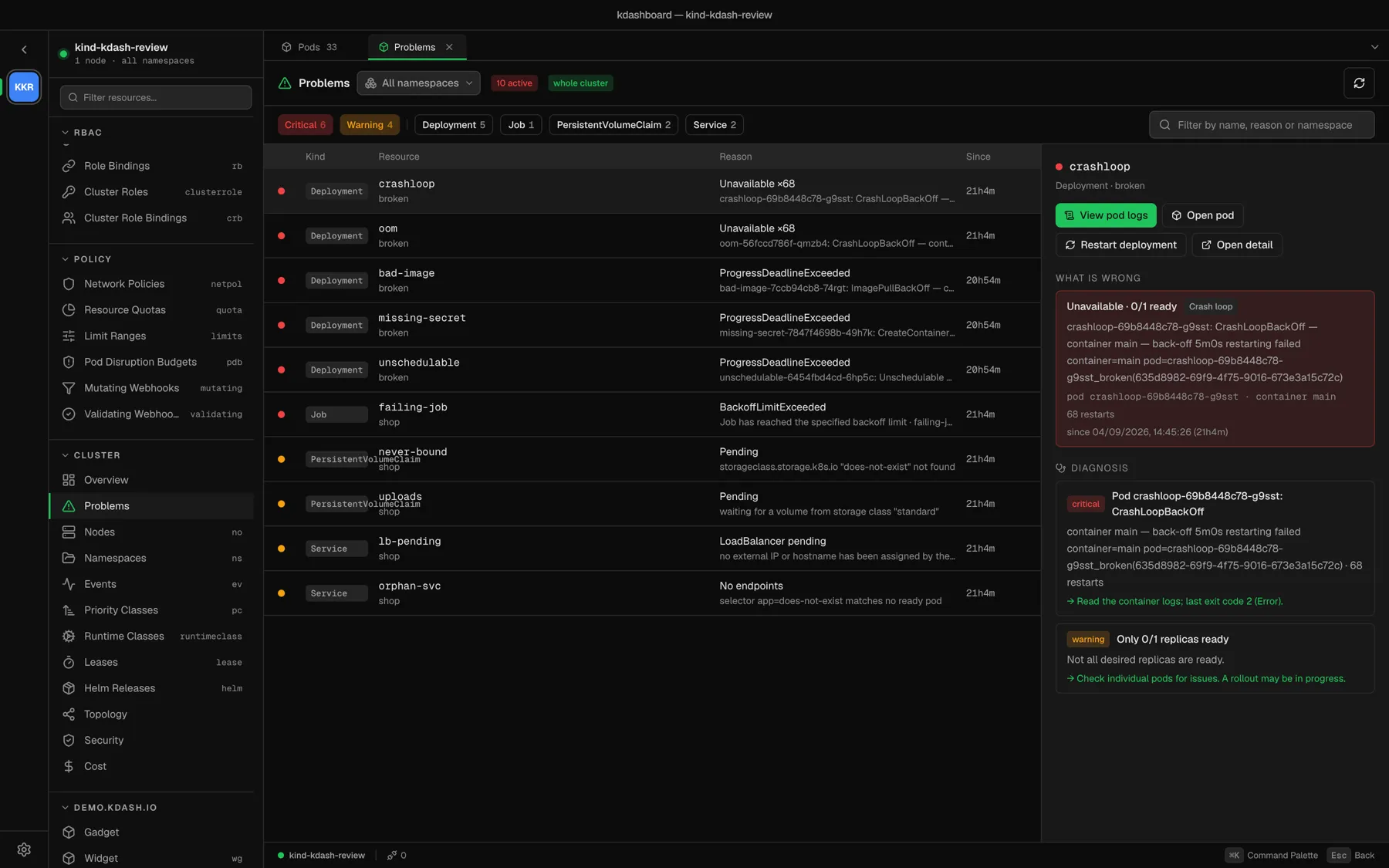
Problems scans nodes, Deployments, StatefulSets, DaemonSets, Jobs, pods, PersistentVolumeClaims and Services, and lists everything that needs attention — critical first, oldest first.
Use the strip above the list to narrow it down: Critical and Warning toggles, one toggle per kind that has problems, and a text filter that matches name, namespace, reason and owner.
Click a row to read its diagnosis on the right. Double-click it to open the resource itself.
What counts as a problem
| Kind | Critical | Warning |
|---|---|---|
| Node | Not Ready | Ready, but under memory, disk or PID pressure, or network unavailable |
| Deployment | Replica failure, rollout not progressing, or unavailable | Fewer replicas ready than desired |
| StatefulSet, DaemonSet | Nothing ready | Fewer ready than desired |
| Job | Failed | Failed pods, but not failed as a whole yet |
| Pod | Crash loop, image pull error, bad configuration, OOM kill, non-zero exit, phase Failed | Unschedulable, or running but not ready |
| PersistentVolumeClaim | — | Pending for more than two minutes |
| Service | — | A selector that matches no ready pod; a LoadBalancer with no address after five minutes |
Paused Deployments and workloads scaled to zero are left out. A pod is folded into its workload: if a Deployment is listed, its crashing pods are not listed again — the Deployment row carries the worst pod’s cause instead.
The diagnosis pane
- What is wrong — the reason as Kubernetes reports it, the ready count, the pod and container that actually failed, the restart count, and since when. A badge names the cause: Image cannot be pulled, Configuration error, Crash loop, Out of memory, Unschedulable, Rollout stuck, Job failed, Volume not provisioned, No endpoints or LoadBalancer pending.
- Diagnosis — findings from the backend checks, each with a severity, a detail and a suggested next step prefixed with
→.
The buttons depend on the cause, so you only see the ones that help:
| Button | When |
|---|---|
| Logs / View pod logs | The problem has a pod behind it. Open pod appears next to it when that pod is not the object you selected. |
| Restart <kind> | A Deployment, StatefulSet or DaemonSet that is crash-looping, OOM-killed or failing for an unknown reason |
| Open <Kind> YAML | Causes you fix in the manifest: image pull, configuration, scheduling, stuck rollout, OOM, pending volume, no endpoints, pending LoadBalancer |
| Open detail | Always |
| Investigate with agent | Always. Hands the AI agent the diagnosis it already has. Investigate all with agent, in the header, does the same for every current problem. |
Alerts
Watch a resource and kdashboard tells you when it breaks, recovers, disappears, or gets a new Warning event.
- Right-click a pod, Deployment, StatefulSet, DaemonSet, Job, CronJob or node — or open its actions menu in the detail — and choose Watch for Alerts.
- A bell with the number of watched resources appears in the status bar. Click it to see what you are watching and the last fifty alerts.
- To stop, choose Stop Watching on the resource, or unwatch in the bell popover.
Watched resources are checked every 20 seconds while you are connected to their context. They are saved in your settings, so they survive a restart; the alert history does not.
| Alert | When it fires |
|---|---|
| Baseline | Once, when you start watching: the current state. Events that already existed are not replayed. |
| Transition | Healthy became unhealthy, unhealthy became healthy, or the reason changed — for example from CrashLoopBackOff to ImagePullBackOff. |
| Event | A new Warning event on the resource. |
| Presence | The resource is gone, or it is back. |
Every alert shows as a toast inside the app. Everything except the baseline also raises a desktop notification; click it to bring kdashboard to the front. Alerts in the popover have a button to investigate them with the AI agent.